Accessibility. It’s one of those words that makes web creators break out in a cold sweat. You know it’s important. You know the law increasingly demands it. But the million-dollar question is: Where do you even start? And, perhaps more importantly, what does a “good accessibility score” really mean?
The internet is full of flashy tools promising a simple 0–100 score for your website. Easy, right? Wrong. A perfect score doesn’t guarantee your site is usable for someone relying on a screen reader or navigating without a mouse. True accessibility is about combining automation with human insight, creating an experience that works for everyone.
This guide dives deep into how accessibility is measured, why scores can be misleading, and, most importantly, practical ways to improve both your numbers and your user experience.
Automated Audits: Fast, But Not Foolproof
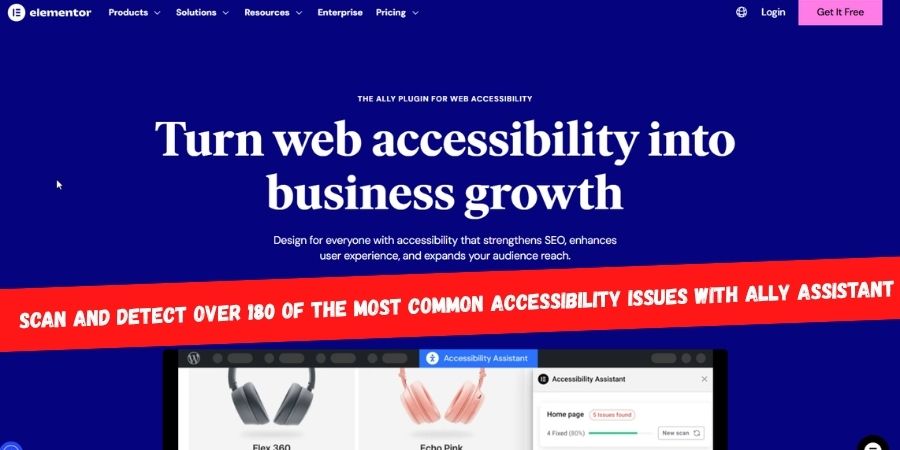
For most web creators, accessibility starts with an automated audit. Tools like WAVE, Lighthouse, or Ally’s Accessibility Assistant scan your site’s code against established rules—usually the WCAG (Web Content Accessibility Guidelines). Think of these tools as spell-checkers for accessibility: quick, efficient, and perfect for catching the obvious mistakes.
What Automated Tools Check
- Color Contrast: Can all users read your text clearly against its background?
- Image Alt Text: Are
<img>tags properly described? - Form Labels: Is every input field tied to a
<label>tag? - Heading Structure: Are headings nested logically (
<h2>follows<h1>, not<h3>)? - Language Attributes: Is the page’s primary language declared in the
<html>tag?
Automated scans are great for catching low-hanging fruit. They’re fast, scalable, and unbiased—perfect if you’re juggling multiple websites or just starting your accessibility journey.
Strengths of Automated Tools
- Speed and Scale: Scan pages in seconds, entire sites in minutes. Humans just can’t compete.
- Clear Starting Point: If WCAG seems overwhelming, a scan gives a concrete to-do list. Most tools link to the relevant success criteria, guiding you step-by-step.
- Workflow Integration: Modern tools often integrate directly into your CMS, encouraging accessibility from day one instead of “fixing it later.”
- Progress Tracking: Run scans over time to measure improvements—perfect for reporting to clients or stakeholders.
Weaknesses of Automated Tools
Automated tools detect only 30–40% of all accessibility issues. Why? Machines check code, but context matters.
- Alt Text Quality: A tool can verify an
<img>tag exists, but not whether"image123"is useful. - Keyboard Navigation: Tools can’t detect confusing tab orders or keyboard traps.
- Link Clarity: Links reading “Click Here” might pass technically but are useless for screen reader users.
- Complex Interactions: Carousels, mega menus, and interactive maps require human judgment.
- Content Comprehension: Cognitive accessibility—how easily someone can read and understand your content—can’t be measured automatically.
In short, automated audits show the “what,” but not the “why” or “how it feels.”
Manual Testing: Why Humans Still Matter
Enter manual testing, the human-centric approach. Here, you step into the shoes of someone using assistive technology, evaluating your site the way a real user would.
Manual testing answers questions automated tools cannot:
- Can users complete tasks smoothly?
- Is navigation intuitive without visual cues?
- Are interactive elements usable with a keyboard or screen reader?
Core Techniques for Manual Testing
1. Keyboard-Only Navigation
Many users rely on keyboards or assistive devices to navigate. Test your site using only:
- Tab / Shift + Tab: Navigate elements
- Enter: Activate links/buttons
- Spacebar: Toggle options
- Arrow Keys: Move within dropdowns or sliders
- Escape: Exit modals
Ask yourself:
- Can I reach every interactive element?
- Is the focus indicator visible?
- Is the tab order logical?
- Are there any keyboard traps?
2. Screen Reader Testing
Screen readers vocalize your page content for users who are blind or low vision. Popular options include:
- NVDA: Free, open-source for Windows
- JAWS: Commercial for Windows
- VoiceOver: Built into macOS and iOS
- TalkBack: Built into Android
Focus on:
- Page structure and headings: Users often navigate by headings, not top-to-bottom.
- Image alt text: Does it describe content meaningfully?
- Link context: Are links descriptive enough for comprehension?
- Dynamic content: Are updates announced audibly using ARIA live regions?
3. Involving Real Users
The gold standard: real people who use assistive tech daily. Recruit participants through accessibility organizations or specialized platforms. Observing them perform tasks highlights pain points and success areas that no tool can detect.
Understanding Accessibility Scores
Automated audits give a score (usually 0–100). Tempting to treat as a final grade—but it’s misleading.
How Scores Are Calculated
- Violation Detection: Checks code against machine-testable rules.
- Severity Assignment: Critical issues impact the score more than minor ones.
- Weighting: Proprietary formulas adjust points lost based on severity.
- Final Score: Starts at 100; points subtracted for detected issues.
What a High Score Means
- Good structural hygiene
- No glaring errors like missing alt text or poor contrast
- Solid foundation for further improvements
What a High Score Doesn’t Mean
- Contextual understanding of alt text
- Real-world usability
- Cognitive accessibility
- Untested issues beyond automated detection
Key Takeaway: Treat scores as a diagnostic tool, not a completion certificate.
Pitfalls: Passing a Test ≠ True Usability
Scenario 1: Forms That Fail Humans
All labels present, ARIA attributes correct. Score? Perfect.
But instructions are jargon-heavy, error messages vague. The form is technically accessible but cognitively inaccessible.
Scenario 2: Mega Menus That Waste Time
Keyboard accessible? Yes.
But a user must tab 150 times to reach “My Account.” Score perfect, experience frustrating.
Scenario 3: Alt Text That Says Nothing
Alt text exists: “Chart showing Q3 sales data.”
But blind users get no actionable information. Technically passes, fails practically.
Lesson: True accessibility means considering context, cognition, and real-world usability.
Improving Both Scores and Usability
#1: Ensure Sufficient Color Contrast
- Why: Helps low-vision users, those in bright sunlight, or color-blind users.
- Check: Tools like WAVE or Axe; WCAG 2.1 AA ratio: 4.5:1 for normal text.
- Fix: Adjust colors or overlay semi-transparent backgrounds for text over images.
#2: Provide Meaningful Alt Text
- Why: Alt text is critical for screen reader users.
- Check: Automated tools detect presence; humans evaluate meaning.
- Fix:
- Be concise and descriptive
- Consider context (person, function, article focus)
- Use empty alt text (
alt="") for decorative images
#3: Focus on Keyboard and Interactive Elements
- Ensure logical tab order and visible focus indicators
- Avoid keyboard traps
- Test all interactive components with keyboard commands
#4: Simplify Content and Layout
- Use plain language, headings, and clear sectioning
- Break down complex ideas into manageable chunks
- Avoid clutter, auto-play videos, and distractions
#5: Human Testing and Feedback Loops
- Observe real users with assistive tech
- Collect actionable insights
- Prioritize fixes that improve both usability and scores
Conclusion: Accessibility Is a Journey, Not a Score
Accessibility scores are useful, but limited. Automated tools catch obvious issues, but human testing, cognitive considerations, and real-world usability define success.
Think of scores as a compass, not the destination. True accessibility is empathy in action, designing websites for humans, not machines.
By combining automated audits with manual testing, keyboard checks, screen reader evaluations, and real-user feedback, you’ll not only improve your score but create a site that’s truly usable for everyone.